How to Edit MP3 Files on Windows 11: Cut, Trim and Fade

This Windows 11 and Windows 10 tutorial explains how to edit an MP3 file without uploading it: select audio on the waveform, cut or crop it, add fades, adjust volume, and export the finished track.

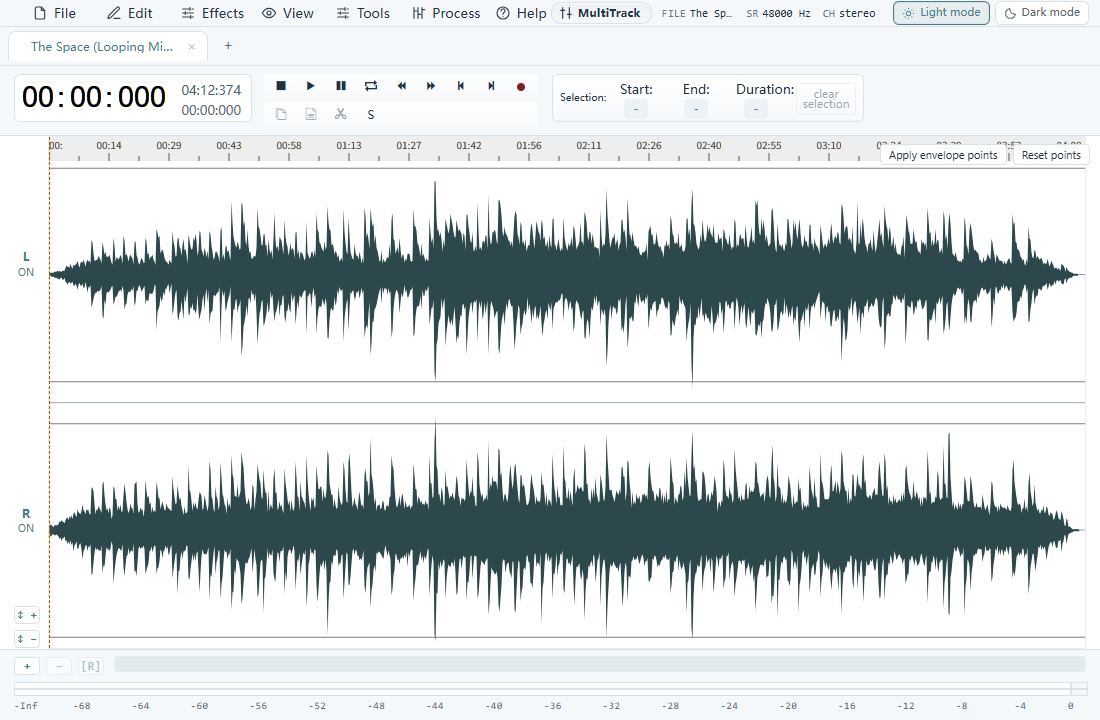
Editing an MP3 waveform on Windows 11 with trim handles and fade curves

Quick answer: Open the MP3 in MP3 Editor for Free, drag across the waveform to select a region, use Cut, Crop or Trim, preview the result, and export a new MP3 file. Keep the original file until you confirm the edited copy sounds correct.

Download MP3 Editor for Free for Windows 11/10

Free desktop audio editor for Windows 11 and Windows 10. Editing happens locally on your PC.

What you can do with an MP3 editor

  • Remove unwanted audio from the beginning, middle or end.
  • Crop a long recording down to one useful section.
  • Copy, paste, repeat or mix selected audio.
  • Add fade-in and fade-out effects.
  • Normalize or amplify a quiet recording.
  • Save the result as MP3, WAV, WMA, OGG or another supported format.

How to edit an MP3 file on Windows 11

1. Open the MP3 file

Install and launch MP3 Editor for Free, then open the MP3 you want to change. The audio appears as a waveform. Press Play and listen once before editing so you know where each section begins and ends.

2. Select a precise region

Drag across the waveform to highlight the audio you want to edit. For a precise selection, enter the start and end times or move the selection handles below the waveform. Use Ctrl+A when an effect should apply to the entire file.

Select a region of an MP3 waveform before editing

3. Cut, delete, crop or trim

  • Cut (Ctrl+X): removes the selection and keeps a copy on the clipboard.
  • Delete: removes the selected audio without copying it.
  • Crop (Ctrl+T): keeps the selection and removes everything outside it.
  • Trim Start or Trim End: removes everything before or after the cursor.

Use Ctrl+Z immediately if the wrong section is removed. Leave a small amount of natural silence around speech so the result does not sound abrupt.

4. Add a smooth fade

Select the opening or closing portion of the waveform, then apply Fade In or Fade Out. A short fade can prevent clicks, while a longer fade creates a natural ending for music or a podcast. Preview the transition before saving.

5. Adjust loudness carefully

Use Normalize to raise the track to a consistent peak level, or Amplify when you need a controlled gain change. Avoid repeatedly amplifying compressed MP3 audio because it can make noise and distortion more noticeable.

6. Export a new MP3

Use Save As or the export command and choose MP3. Give the edited file a new name so the source remains available. For spoken audio, a moderate bitrate usually keeps the file small; music generally benefits from a higher bitrate. Listen to the exported file before deleting any original.

Editing without unnecessary quality loss

MP3 is a lossy format, so decoding and exporting it again can reduce quality. Make all edits in one session and export once. If the project will go through several editing stages, save an intermediate WAV copy and create the final MP3 only at the end.

Troubleshooting

The exported MP3 is silent

Make sure the selected region was not silenced and that the output volume is above zero. Preview the waveform inside the editor, then export a short test file.

The beginning or ending clicks

Move the cut slightly toward a zero crossing or apply a very short fade. Cutting a waveform at a high-amplitude point can create an audible click.

The result sounds distorted

Undo excessive amplification, normalize more conservatively, and check that the level meter does not remain at its maximum. Exporting at a very low bitrate can also introduce audible artifacts.

The MP3 will not open

Confirm that the file finished downloading and is not protected. Try opening another MP3. If only one file fails, convert a copy to WAV with a trusted converter and edit that copy.

Frequently asked questions

Does MP3 Editor for Free work on Windows 11?

Yes. The current download is intended for Windows 11 and Windows 10.

Can I remove a section from the middle of an MP3?

Yes. Highlight that section on the waveform and use Delete or Cut. Preview the join and add a short fade if the transition sounds abrupt.

Can I edit WAV files too?

Yes. The editor supports MP3 and other common audio formats including WAV, WMA and OGG.

Should I overwrite the original file?

No. Save the first edited result under a new name. Once you have listened to the full export, you can decide whether the original is still needed.

Edit an MP3 on Windows 11/10

Continue with how to apply a fade effect or learn how to reduce background noise.